Today Apple released iOS 12.2, so we wanted to mention that we’ve been testing with this latest update and forScore users should feel free to install it whenever they’re ready. In fact, there are two notable improvements made to this version that we wanted to call out.
First, this update fixes a system-wide issue when exporting PDFs that could cause semi-transparent annotations (like those made with default highlighter preset) to appear darker than normal, and could show artifacts especially around white markings.
This update also unexpectedly adds support for the Logitech Crayon to the latest generation of iPad Pros, the 11-inch and 12.9-inch (3rd generation). In our testing, we found them to be a great rugged alternative with few downsides. If you’ve got an iPad Pro and couldn’t justify the price of the Apple Pencil 2, this cheaper alternative definitely deserves a look.

Logitech’s Crayon doesn’t support pressure sensitivity, but it does support tilt and otherwise works similarly to the first generation Apple Pencil. The cap is built in so you can’t lose it, it charges with a cable so there’s no need to awkwardly plug it in to the bottom of your iPad, and it doesn’t require pairing so it’s even easier to set up. It’s a utilitarian tool that in many ways makes up for some of the more curious choices Apple made with their first Pencil, and overall it’s a great option that we’re happy to recommend.
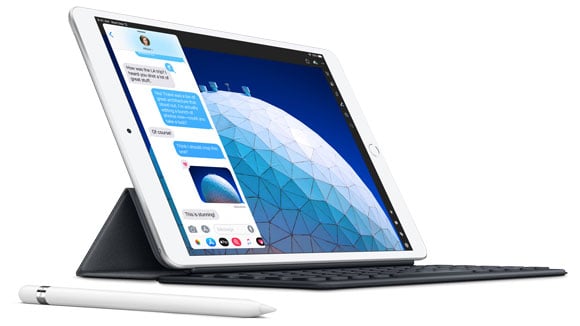
Today Apple introduced two new iPads and while their lineup has never been more complicated, there have also never been so many great options for customers to find one that best suits their needs. While we haven’t yet been able to test them, we expect that forScore will be fully compatible with the two newest models right out of the box. Their form factors and screen sizes aren’t new, and every major hardware feature (like Apple Pencil support) has been previously available in other devices, so there shouldn’t be any surprises.
There was a time when Apple’s product refreshes offered a new vision for their lineup: these older things are gone now, and they’re being replaced by better ones. Now, products slip downward from tier to tier as they age, with Apple continuing to offer them for lower prices or in select markets. It’s not as exciting, but in the end it’s a great thing for users. Whether you’re looking to get started with your first device or thinking of upgrading an older one, now’s a great time to check out Apple’s latest offerings.
If you’ve been interested in trying out forScore or seeing what the latest and greatest iPads have to offer, there’s never been a better time to head down to your local Apple retail store or third-party reseller. At many locations worldwide, including stores like Best Buy, forScore is currently featured on demo iPad Pros so you can see it in action and test it out for yourself. Where available, it’s also a great opportunity to try annotating with the new Apple Pencil 2 and using its double tap gesture.
We’re incredibly honored and thrilled to have been chosen to appear alongside many other amazing apps in this setting, and we think a lot of curious musicians will really benefit from the chance to experience it firsthand.

February 27, 2019
Uncategorized
When you’re not viewing a page of music, the most common type of view you’ll be using in forScore is a menu, or a list of items. You’ll learn about specific menus later in this guide, but there are a few important concepts that apply equally to most of the app’s menus.
Layout
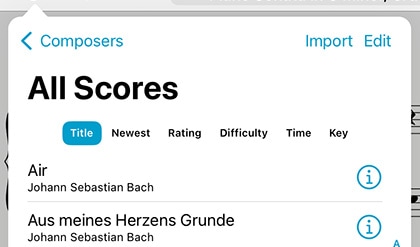
Menus usually feature a navigation bar along the top. This bar includes a title, a back button (when appropriate), a menu button which lets you change how items are sorted or presented, and an edit button. On iPhones or in other cases where space is limited, some of these buttons may appear in a toolbar along the bottom of the menu instead.
The menu (ellipsis) button lets you sort lists differently, show some lists as a grid of thumbnails, and may also offer a Filter function that allows you to only show items in the current list that match one or more rules that you define.
Below the navigation bar, you’ll usually see a segmented control that changes which content you see in the menu. This control may scroll horizontally if needed to display all of the options.
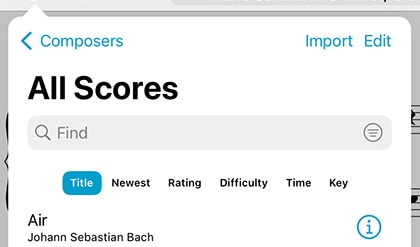
Most menus also include a search bar hidden between the navigation bar and the segmented control—drag the list downward to access it. When you’re done searching, or when you scroll, the search bar slides back under the navigation bar and disappears until you need it again.
Menus may also include an index down the right-hand side which allows you to move quickly through longer lists. Tap or drag your finger up and down over it to jump to a particular spot or first letter (if the list is sorted alphabetically).
Working With Lists
To open an item, just tap on it. Some lists feature swipe actions so you can do common things quickly: swipe from right to left over an item to reveal actions such as Share or Delete. In many cases, you can also tap and hold an item (or right click) to see a complete list of actions available for that item.
You may also see a button or symbol off to the right-hand side of each item. A light gray arrow or chevron symbol indicates that selecting the row will display an additional list of items, such as selecting a composer to see all of their scores. A circular colored button lets you edit an item, while tapping anywhere else in that row opens the item instead.
One of the most important items in a menu is the edit button in the navigation bar or toolbar. While in edit mode, you can tap to check or uncheck multiple items in the list and then use the chevron button in the navigation bar to work with those files in a number of ways. These options can vary, but usually include the ability to select or de-select all items and delete or share them.
Sidebar
In some cases, forScore uses a sidebar to present many of its menus. It uses one of two styles: overlay or tile (tap the Sidebar button in the toolbar along the bottom of the menu to switch between these modes). Overlay dims the page and only allows you to access the menu—tap the dimmed area to dismiss it. In tiled mode, you can work with menus and the main view at the same time. Note that when the window is too small to use tiled mode, it switches back into overlay mode automatically. This sidebar layout is used on macOS, visionOS, and can be toggled using the Display Options overlay on supported iPads.
February 27, 2019
Uncategorized
Modes
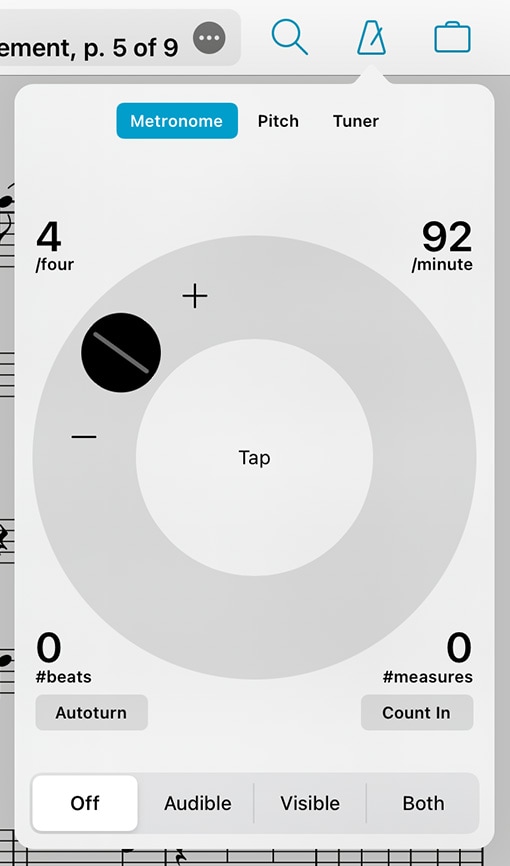
With forScore’s metronome, you can use several different methods to keep time. In Audible mode, you’ll hear a tick at regular intervals, based on the beats per minute (BPM) that you set. With the Visible metronome, a black border pulses around the edges of your score, allowing you to keep time visually while still being able to see the entire page. If you like, you can use the Both option to both see and hear the metronome simultaneously.
BPM and Time Signature
For each score in your library, forScore saves a unique BPM value and time signature that’s automatically used every time you return. Just tap either value to change it with the number keypad. You can also adjust the current score’s BPM by rotating the wheel, using the + and – buttons, or by tapping twice in the center of the screen.
Channels
If you’re using headphones or a line out, an icon at the top of the panel controls which channel(s) the audio plays through. Tap to toggle between left, right, and both channels.
Count In
Use the “Count In” feature to automatically turn off the metronome after a certain number of measures.
Autoturn
For scores with sequential pages, forScore’s metronome can also turn the pages for you automatically. To use autoturn, follow these three steps:
- For each page of your score, enter in the number of beats on that page or type in the number of measures and the app will do the math for you. If you’re on the first page of your score, consider adding a few extra beats as a lead-in.
- Tap the autoturn button to turn it on (if it isn’t already)
- Start the metronome by selecting Audible, Visible, or Both
Once the metronome counts up to the number you’ve specified, the page will turn automatically.
If you’re viewing your score in landscape mode, forScore will also scroll down when it reaches half of that number. (If you have 64 beats on a page, it’ll scroll to the bottom of the page at 32 beats.)
Turn the metronome off at any point to reset the autoturn count.