February 27, 2019
Uncategorized
General
- Auto-lock: Disable this setting to prevent your device from sleeping automatically while forScore is open.
- Search: Adjust which kinds of results are shown and in which order, how many recent items are listed, and more.
- Show recent items: Choose how many recent items to show in the search panel before you’ve typed anything into the search field (enter 0 for none).
- Search results: Check or uncheck specific result types and reorder them to prioritize those you want to see first.
- Bookmarks: When creating a bookmark, as you type in the title field this feature can offer page number suggestions based on occurrences of that text within the PDF file (not available for image-based files).
- MIDI: Toggle the ability to send and receive MIDI commands or use the piano keyboard as a synthesizer.
- Send commands: Allow forScore to send signals you’ve added to specific scores each time you open them (see Metadata)
- Receive shortcuts Allow forScore to interpret some incoming MIDI signals as score shortcuts (see the Metadata section) or action shortcuts (see Page Turners & Shortcuts)
- Synthesizer: Allow forScore to play piano sounds in response to incoming note messages.
- MIDI network setup: Connect to a nearby network MIDI session.
- Bluetooth MIDI devices: Connect to nearby Bluetooth LE-enabled MIDI devices.
- forScore Pro: Get more out of forScore with this optional, auto-renewing subscription.
- Manage subscription: Learn more about, and sign up for, the forScore Pro service.
- Pop-up menus: Enable or disable popup menus and manage your pinned tools.
- Face gestures: If your device supports it, choose which face gesture mode to use and calibrate its sensitivity.
Navigation
- Up next: See the next queued item’s title in the status bar when you reach the last page of the current item.
- Gestures: Configure forScore’s taps, swipes, and shortcuts to better suit your needs.
- Page turners & shortcuts: Use keyboard shortcuts, MIDI signals, page turner pedal presses, or an Apple Pencil 2 double tap gesture to trigger certain actions.
- Page transitions: This setting affects the transition animation that is used when turning pages.
- Flip between scores: Choose when to advance from the end of one score to the beginning of the next, like a book.
- Page advance: Choose whether to advance one or multiple pages at a time when using multi-page layouts.
Appearance
- Show status bar: Controls whether the system status bar along the top of the screen is visible while using forScore.
- Split view: Choose whether the main view should use a split view (default) or use the original popover-based layout instead.
- Controls: Prevent the seek bar from hiding when the title bar is dismissed, show the tab bar when a single tab is open, and control how the title bar behaves (if your device supports resizable windowing).
- Menus: Enable or disable section headers and control which kinds of metadata are shown below items and setlists.
- Theme: Adjust the look and feel of forScore’s interface.
- Colors: Change forScore’s primary interface colors or choose from a list of built-in themes.
- Interface style: Choose to always use light mode, always us dark mode, or follow the system setting instead.
- Icon weight: Choose a bolder or lighter style for most icons and buttons.
- Background color: Control whether the main view’s navigation bar is tinted slightly to match your current color theme.
- Page dimming: When using dark mode, forScore can dim your pages to reduce contrast in low light environments.
Metadata
- Use external audio: When forScore launches, it checks to see if iOS’ shared audio system is currently in use. If so, this option will allow you to control playback of that track, temporarily overriding any linked tracks.
- Sorting: Adjust how forScore sorts your composers, scores, and bookmarks.
- Show bookmarks in library: Bookmarks typically appear in two places—the bookmarks menu itself, and alongside other files in the score menu. Disable this to hide bookmarks from the score menu.
- Smart sorting: For checked items, sorting ignores common prefixes like “the,” “a,” or “an.”
- PDF annotations: Choose which kinds of embedded PDF annotations should be visible (and interactive, if applicable).
Annotation
- Exit two-up mode to annotate: If you’re using two-up mode, use this setting to control whether or not forScore should temporarily return to one-up mode and enlarge the current page while annotating.
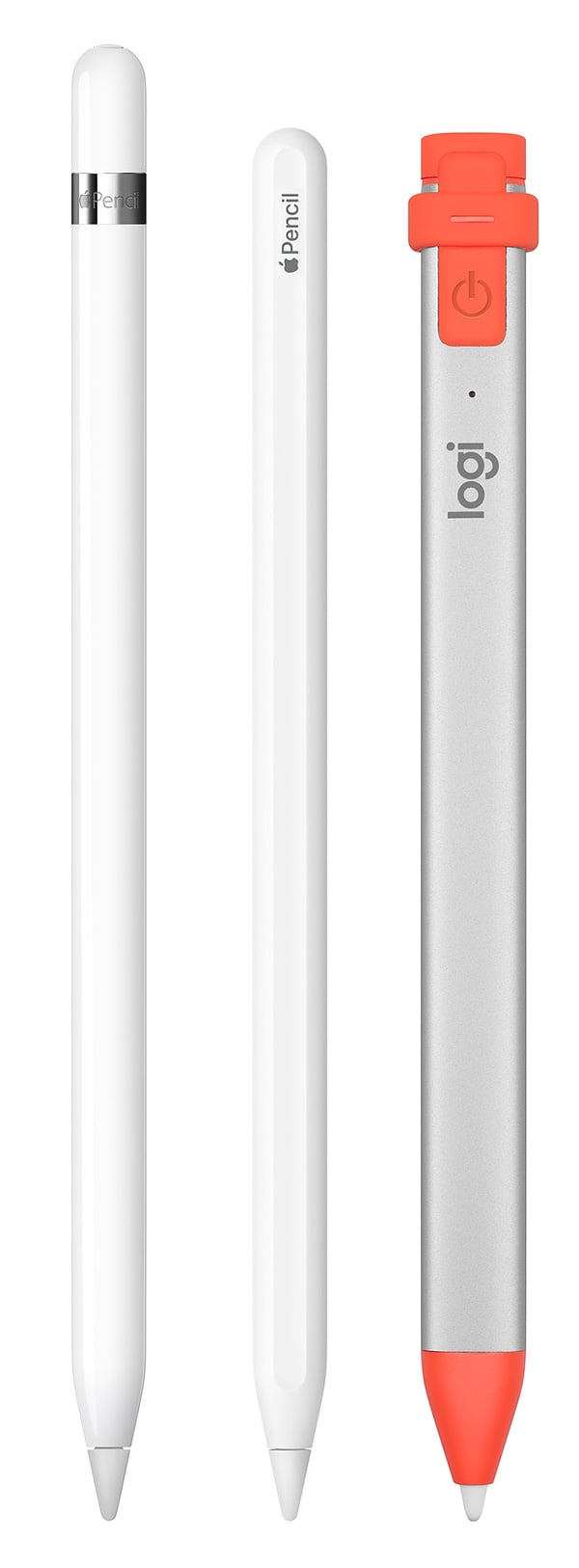
- Apple Pencil: Adjust how annotation works when using Apple Pencil or the similar Logitech Crayon.
- Automatically enter annotation mode: Allows you to begin drawing at any time without entering annotation mode first.
- Automatically exit annotation mode: Allows forScore to save your work and exit annotation mode after a brief period of inactivity (defaults to Never).
- Prevent finger drawing: Restricts drawing to Apple Pencil in order to prevent accidental input.
- Variable width: Choose whether to increase drawing width based on tilt and/or pressure.
- Switch tools: Apple Pencil 2’s double tap gesture can control which annotation tool is currently active, and by default only works while you’re in annotation mode. Enable this setting to allow the gesture to work at all times (if you do, this gesture will no longer be configurable within the Page Turners & Shortcuts panel).
- Annotation tools: Control how forScore saves your last-used preset between annotation sessions.
- Remember tool selection: Allow or prevent forScore from saving your last-used annotation tool.
- Default tool: Choose a specific tool to always be selected when you enter annotation mode. If an item is selected in this section, the previous section has no effect.
- Add period with double-space: iOS automatically adds a period when you type two spaces into a text field. Disable this setting to prevent that behavior while using forScore’s text annotation tool.
- Variable width: Adjust how much forScore should emphasize your drawings based on speed or Pencil pressure and tilt.
More
- Accessibility: Enable or disable certain features, adjust the size of links and buttons, or customize the metronome’s sounds.
- App icon: Change forScore’s app icon.
- Advanced options: Access advanced/older settings and temporarily re-enable retired features that have limited support and may be removed in future updates.
- Restrictions: Set a passcode and hide certain features.
- Reset: Restore default app settings, stamps, or drawing presets, or scan your library and remove any unused data.
February 27, 2019
Uncategorized
Getting the most out of this guide
This document was designed to introduce you to forScore’s many features, and to give you a framework of knowledge to use as you continue exploring and learning on your own. It’s not a technical manual and isn’t intended to provide exhaustive step-by-step instructions for every situation.
Every person learns differently, and while we do our best to make things clear for users of all levels of experience, you may have some questions that aren’t answered here. If that’s the case, visit forscore.co/support to find more specific answers and topics.
Devices
forScore is compatible with iPads running iPadOS 18 or later, iPhones on iOS 18 or later, Macs using macOS 15 or later, and Vision Pro with visionOS 2 or later. Except where noted, functions available on one device are also available (and work similarly) on the others. Exact placement and appearance of features and icons may vary based on your OS version, device, settings, and multitasking mode.
iPadOS and iOS are nearly identical in most respects, so to keep things concise we sometimes refer to them collectively as “iOS” in this guide. Unless otherwise noted, those references apply equally to both platforms.
Terminology
forScore is designed to be used with a variety of input methods including touch, keyboards, and trackpads or mice. In general, we use words like “tap” and “drag” or “swipe” which translate to “click” or “scroll” when using a mouse or trackpad. When we refer to screen size or device orientation, these concepts translate to window size and aspect ratio when windowing is used.
A note about Drag and Drop and Contextual Menus
Since they were introduced, forScore has fully supported and made extensive use of both Drag and Drop and Contextual Menu interactions. To keep things simple, this guide doesn’t call out every situation where these features are available. Instead, we provide two sections at the end of this document that help you understand when these interactions can speed up the tasks you’ve learned about in earlier sections.
Additional information about this user guide
This user guide is provided as a courtesy, as-is and without guarantee or warranty. Although we thoroughly proofread the content herein for accuracy and clarity, you are solely responsible for the integrity and protection of your information while using forScore.
This guide was last updated for version 15.2, and all features are subject to change without notice. If you are unsure how any of the processes described in this guide may affect your information, consider backing up your data before proceeding.
Please remember that many musicians rely on the legitimate sale of their sheet music as an essential part of their income. Although forScore provides the mechanism for importing PDF files from the numerous sources, it is solely your responsibility to ensure that doing so does not infringe upon any current laws or restrictions under which you are subject.
For any questions, corrections, suggestions, or concerns, please visit forscore.co/support and send us a message—your feedback is how we make better products.
All content copyright © 2010- forScore LLC. All rights reserved. No portion of this document may be reproduced, modified, or distributed without permission.
February 27, 2019
Uncategorized
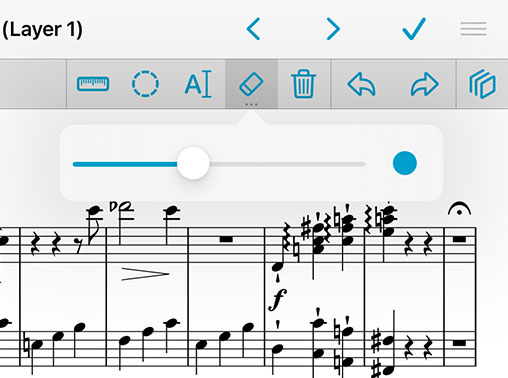
Add notes to your score by selecting “Annotate” from the tools menu or by tapping and holding your finger on the page for a few moments. When you do, a new set of controls will appear on the screen:

The set of three lines in each corner allow you to drag the control bar up and down so you can annotate anywhere on the page. Tap the × or check mark button to discard or save your changes, or tap the arrow buttons to save and continue annotating on a nearby page.
On the second row of controls you’ll see stamps, shapes, and a scrolling view of your drawing presets. Tap a preset to use it, and tap again to edit, move, or delete it. Use the last item in this area (+) to add new presets.
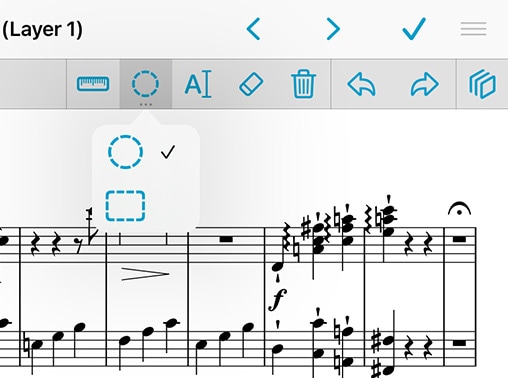
In the next section over you’ll find additional tools like a ruler, a selection tool, a typing tool, an eraser so you can remove certain annotations and delete links or buttons, and a clear button if you want to start from scratch.
Use the undo and redo buttons in the next section to quickly correct mistakes, and use the rightmost button to access and work with annotation layers (discussed later in this section).
Note: when forScore is using a smaller layout, such as on an iPhone or using Split View on an iPad, the annotation toolbar cannot be moved and will not display the redo and clear buttons—in this case, tap and hold the undo and eraser icons to use these functions.
Stamps & Shapes
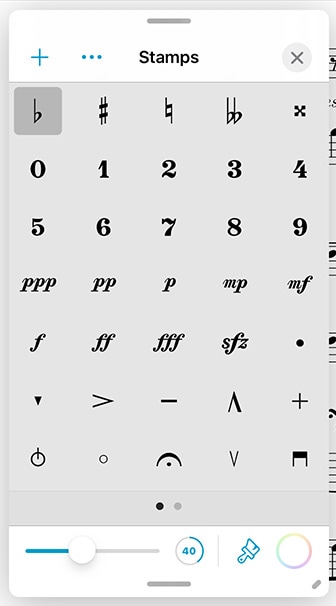
Some musical symbols cannot be typed into a text box or drawn precisely, but with the “Stamps” and “Shapes” tools you can place these kinds of annotations on the page quickly and easily. Tap to select either tool, then tap again to see all of the available options for each. Select one and drag your finger around on the page to see how they work. At the bottom of the panel, use the size slider to adjust a stamp’s size or a shape’s line width.
Tip: Use tinting to place colored symbols on a page: set a stamp color and enable tinting (you can disable it at any time without losing your color choice), then use the stamp tool like you normally would. You can also change the color of individual shapes—tap the color well or circled arrow button next to a shape, depending on your OS version. Note that tinting does not affect your existing annotations.
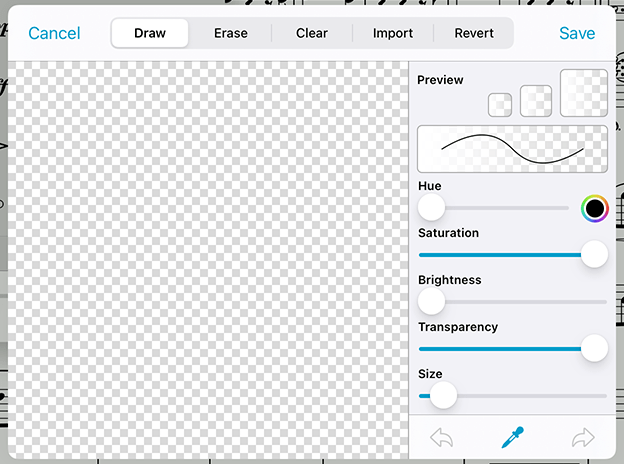
You can add your own stamps by pressing the “…” button or edit an existing stamp by selecting it, tapping again to show the contextual menu, and choosing “Edit.” This opens the stamp editor where you can draw or edit your design.
You can also create stamps from one or more images from your device’s photo library, the Files app (and any configured cloud storage services), or from forScore’s documents directory if you’ve added any images using File Sharing. First, find or create a PNG image (for best results it should be 144×144 pixels), then tap the “…” button in the top left-hand corner of the panel and choose the appropriate source and select your image(s). On iPad or Mac, you can drag and drop an image from virtually any app directly into the stamp creator and edit it as needed before saving.
Tip: The “Browse Images” interface allows you to delete images you no longer need: swipe from left to right over the item in the list and tap the delete action to confirm.
The “…” button’s menu also includes Rearrange and Select options which allow you to move stamps around or to select one or more stamps and delete them quickly if needed.
Drawing Presets
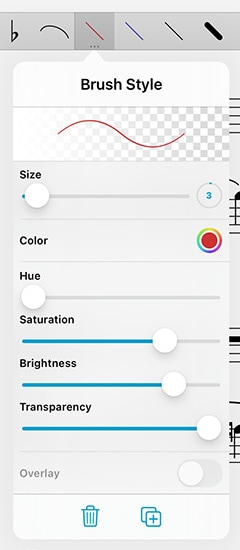
Drawing presets allow you to create an unlimited number of different styles perfectly tailored to your needs. Tap the + button to create a new preset, or edit any existing preset by tapping it once to select it and then tapping again to show the editor. You can adjust the hue, saturation, transparency, brightness, size, and overlay mode for each preset. Use the buttons in the toolbar along the bottom of the editor to delete or duplicate your preset. To reorder your presets, close the editor and tap and hold to drag a preset left or right.
Ruler
When you need to draw straight lines or precisely align your stamps and shapes, the ruler tool is ready to help. Just tap the ruler icon to show or hide it. Reposition it by dragging it around on the page, or rotate it by placing two fingers within the ruler and spinning them clockwise or counter-clockwise: as you do, a dot will appear showing you the current angle. When you get close to a right or diagonal angle, the dot will turn blue and the ruler will snap to that value.
Place your finger near either edge of the ruler to draw a straight line or to position your stamp or shape along it. If you start drawing further away from the ruler and draw into it, your markings will stop at the edge.
Selection Tool
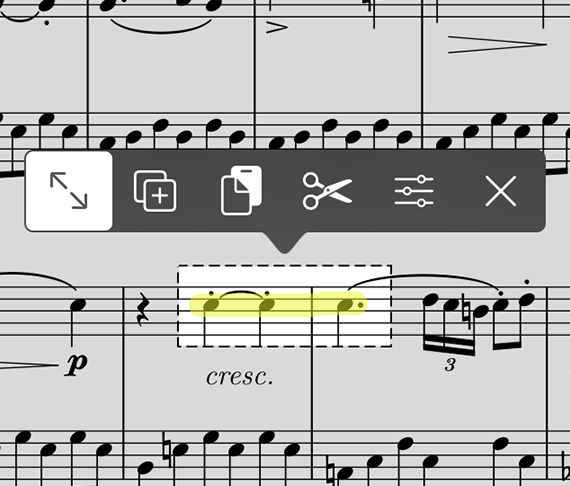
The selection tool allows you to edit a specific area of drawn annotations after they’ve been made (including stamps and shapes). Draw around the annotations you want to edit and you’ll see several new actions appear in a dark popup near your selection. The move tool, active by default, lets you reposition your annotations: drag your selection around on the page, then tap outside of it to commit your changes or tap within the selected area to continue editing it.
You can also choose from one of the other five actions: Duplicate, Copy, Cut, Adjust, and Clear. The duplicate action creates a copy of your drawings that you can then drag to reposition, Clear erases the selected area, and Cut combines the Copy and Clear actions.
Copy saves the currently selected drawings and lets you paste them on another page, even in another file. With the selection tool active, tap to place the copied drawings onto the page (drag to reposition if needed or tap the arrow button to use the copy’s original position).
The Adjust action lets you re-color your annotations by changing their hue, saturation, brightness, and opacity.
Text Annotations
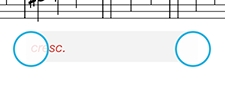
Text annotations can be used to display text directly on a page at all times. With the text tool selected, tap the page to create a new text box. Drag the white circle on the left side of it to move it, and drag the one on the right to change its width (forScore automatically adjusts its height to show all of its text).
When you tap inside of a text box to edit it, you’ll also be able to adjust its style (and set defaults for new text boxes), assign it to another layer, or delete it. On iOS and iPadOS, these actions are available in the toolbar that appears at the top of the virtual keyboard, if shown, or along the bottom of the screen if not (the system hides the virtual keyboard when a physical keyboard or certain page turning devices are connected). On macOS, tap the ellipsis button to the right of the active text box to access these options. When you’re done editing, tap the page outside of the text area to dismiss the keyboard.
Layers
Use layers to separate your annotations, allowing you to work with one set of markings without affecting any other. The Layers panel lets you view and manage layers, pick the active layer, and reorder, hide, duplicate, clear, or combine them. Score layers are available on every page of the current score and can be hidden or shown for all pages at once.
You can also copy the entire contents of a layer and paste them atop or replace the contents of another layer, even on a different page or score. In the layers panel, tap and hold a layer to access these and other actions using its contextual menu.
forScore Pro subscribers have access to an additional “PDF” layer that allows them to copy and paste page contents and make structural changes to their documents. Learn more about this feature in the forScore Pro section of this guide.
Apple Pencil (iPad only)
When you’re using Apple Pencil, forScore gives you additional options that allow you to work more naturally. “Automatically enter annotation mode” activates the drawing tools the moment Apple Pencil touches the screen, and “automatically exit annotation mode” saves your changes after a brief period of inactivity. We refer to these settings collectively as “instant annotation.”
Although iOS and Apple Pencil work together to avoid unintentional input, no system is perfect. If you don’t plan to annotate by drawing with your fingers, enabling “prevent finger drawing” may help. You’ll still be able to use your fingers to do things like change tools or zoom in, but only Apple Pencil will draw. If Apple Pencil hasn’t been used for a while, or if you tap the hand icon in the annotation toolbar, finger drawing will be re-enabled.
Newer Apple Pencil models support squeeze/tap gestures which can be used to switch tools, show the current tool’s detail view, and more (configurable in the Settings app). If you prefer to be able to switch tools even when annotation mode is inactive, change the “switch tools” option in the Apple Pencil section of forScore’s settings panel. Otherwise, this gesture can optionally be configured for use outside of annotation mode using the instructions found in the Page Turners & Shortcuts section of this guide.
If Apple’s Scribble feature is enabled on your device, you can use Apple Pencil to hand-write words directly into a text annotation and iPadOS will transform them into text automatically.
Newer iPads support hover detection, allowing forScore to show a drawing preview before your pencil touches the screen. This can be customized, along with additional options available to forScore Pro subscribers (see the forScore Pro section for more information).
Sidebar
If the sidebar is visible and presented in tiled mode, that space is repurposed when annotation mode is activated. The Layers list is shown here by default, but can be replaced by the Stamps or Shapes panels by tapping either of these tools once to select them, if needed, then tapping them a second time. Note that you can continue to use other tools or presets while these detail views are embedded in the sidebar.
Note: forScore’s split view layout and the sidebar are always available on macOS, and can be optionally enabled using the Display Options interface on supported iPads (devices running iPadOS 16 that support Apple’s Stage Manager feature). The sidebar is not available on other devices.
Settings
forScore also includes several settings that give you more control over how annotation mode saves your last-used tool or preset. By default, the last tool you used remains selected the next time you enter annotation mode. In forScore’s settings panel, the “Annotation Tools” section allows you to change this: either choose which tools can be saved between annotation sessions and which should not, or pick a default drawing preset that will be active each time you start annotating.
As you draw, lines can become bolder to capture your natural emphasis (this is based on pressure and tilt with Apple Pencil, tilt with Logitech Crayon, or drawing speed when you’re using your finger). Use additional options in the settings panel to control how pronounced this variable width effect is.
February 27, 2019
Uncategorized
On iOS and iPadOS devices, Apple provides a standard system interface that any app can use to help you work with documents, also available through the standalone “Files” app. It lets you access and work with your documents whether they’re stored in iCloud Drive, third party cloud storage services, or within apps like forScore that choose to make their documents available in this way.
File Providers
The Files interface lets you access documents stored in iCloud Drive, other apps, or dozens of third-party cloud storage services like Google Drive or Dropbox. Learn more about configuring the Files interface to work with your favorite cloud storage provider at forscore.co/files.
Importing Files
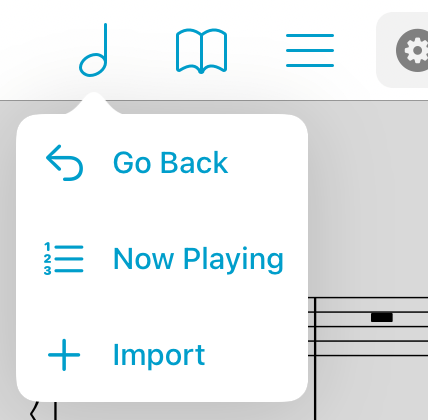
Use the import button in the main menu to copy files to your forScore library. Tap a single file or use the Select button (only available in the Browse tab) to import multiple files at once. Use the Locations sidebar to switch between cloud storage providers, including iCloud Drive, or to view files stored locally on your device.
Sharing Files
Any time you share files from forScore, you’ll see iOS’ native sharing interface appear which includes an option called “Save to Files.” Use this action to copy your files to other apps or upload them to any of the cloud storage services you’ve configured.
On iPads, Drag and Drop gestures make importing and sharing content even easier, especially when using iOS’ multitasking modes. Learn more about these gestures in the Drag and Drop section at the end of this guide.
The Services Panel
If you prefer, you can also access the Files interface using forScore’s Services panel. If it’s not already shown in the list of Services, tap the + button to select it, then tap it to view the splash screen and choose to either upload or download content.
forScore’s Documents
Every app has its own Documents directory where they can store a user’s information. This is where forScore stores all of your PDF files; if you’ve ever used the File Sharing interface, this is the directory you were working with.
forScore’s Documents directory can also be accessed directly through the Files interface and standalone app. Choose “On My iPad” (or iPhone) from the Locations list in the app’s sidebar to see app folders for forScore and any other apps on your device that store data in their own Documents directories.
Working within forScore’s Documents directory through the Files app carries the same implications as working within the File Sharing interface does—delete files here and they’ll be permanently removed from forScore. We do not recommend renaming PDF files through this interface as doing so will remove that file’s metadata, annotations, and more.
Note: If you want to rename PDF files stored in forScore’s Documents directory, use the metadata panel to change its title instead and the filename will be updated to match it as closely as possible.
February 27, 2019
Uncategorized
Features
forScore Pro is an optional, auto-renewing subscription that allows us to offer more advanced features, ensures we can be ready for the latest devices, accessories, and software updates on day one, and gives you access to certain features and benefits like the ones described below (the exact list is subject to change; for the most current information visit forScore.co/pro).
Priority Support:
We’re a small team with limited resources, so unfortunately we can’t offer personalized support to every customer in perpetuity. By subscribing to forScore Pro, you allow us to spend more time with you so you can learn how to use the app to its fullest and get quicker answers to any questions that might come up.
Face Gestures:
If your device supports face tracking, you can use facial gestures to turn pages—by turning your head, winking, or moving your lips to the left or right. Activate it by tapping the face icon in the Display Options overlay, and open Tools › Settings › forScore Pro › Face gestures to choose whichever mode works best for you and adjust its sensitivity if needed. For best results, ensure that there’s sufficient lighting and, if using mouth movements, take advantage of the automatic calibration method for easy setup.
Pop-up Menus:
Many of the buttons in forScore’s navigation bar feature pop-up menus to let you quickly perform common tasks related to each of them. Touch the button and drag your finger downward to see the list of shortcuts, or tap and hold an item until the menu appears.
While in annotation mode, use pop-up menus to switch between layers or adjust the size of any drawing preset as well as the stamps, shapes, and eraser tools.
Note: when using a mouse or trackpad, right clicking any of these buttons will immediately present its pop-up menu. You can also click and drag downward to show the menu, but due to conflicts in the way iPadOS and macOS handle Drag and Drop this will not work for buttons that also support rearranging (annotation drawing presets).
Page Copy & Paste:
Each page has a single annotation layer by default, but forScore Pro subscribers will also see an additional “PDF” layer at the top of the Layers list for every page of a score. This layer works much like other layers do, but with one important distinction: when you use the selection tool’s Copy or Cut actions, forScore copies any annotations on that layer as well as the contents of the page itself. This allows you to move measures around or copy and paste them between pages to better suit your needs. Learn more about the selection tool in the Annotation section of this guide, or see this knowledge base article for step-by-step instructions.
If you’re a forScore Pro subscriber and you make structural edits to a document, you can share those changes with colleagues—either send an annotated PDF file with permanently embedded annotations, or share a 4SC file (the receiver can show, hide, or clear the PDF layer but can not make any changes of their own).
Note: forScore cannot copy vector information stored within a PDF file, it can only copy a high-resolution image of the selected portion of a page. If you’re working with vector-based files (which can be enlarged without limit), changes made using Page Copy & Paste will appear pixelated at higher zoom levels. Whenever possible, permanent or archival changes should be made using the same source material and application that was used to create the original PDF file in the first place.
Stamps & Symbols:
Swipe left and right in the Stamps palette to access six additional stamp sets (almost 400 additional symbols) and use them as is or copy any of them to your personal collection to edit or reorder them. Pro users can also create stamps using Apple’s SF Symbols library—just find a symbol using the SF Symbols app and type in its name to add it to your stamp collection. That gives you access to over 6,000 symbols as of iOS 18 and any that are added with future OS updates.
SF Symbols can be used for more than just stamps: open the metadata panel and tap a metadata category to customize it. In addition to the symbols offered there by default, Pro users can add any other SF Symbol by name to perfectly personalize their organizational system.
Apple Pencil:
On supported devices, while holding Apple Pencil near the screen, you can use customizable pinch, swipe, and tap gestures to resize or cycle through presets, undo or redo drawings, or show a rotary preset picker that makes accessing your presets faster and easier than ever. With Apple Pencil Pro, you can even configure the squeeze gesture to show this rotary picker for instant access with one hand.
Profiles:
Create multiple settings profiles for separate forScore users or customize your forScore experience for any situation. When you switch back and forth between profiles they’re updated and restored automatically.
Sharing:
When sharing scores, bookmarks, or setlists, an additional “automation” option allows you to easily copy the relevant URL so you can save it wherever you like.
App Icons:
Customize your home screen by choosing from additional app icon options.
Subscribing
Choose Settings from forScore’s tools menu and select “forScore Pro” to learn more, subscribe, access settings for subscriber-only features, and restore or manage an existing subscription.
Note: if you’re currently subscribed to forScore Pro and you start using forScore on a new device, you may need to use the Restore button found within this panel to start using your membership on that device—your original device(s) will still be able to use forScore Pro.
If you choose to become a forScore Pro subscriber, you’ll not only be getting the benefits outlined above: you’ll also be supporting us and making sure we can keep releasing updates for years to come. After the first year, Apple takes a smaller cut so more of your money goes directly to supporting our app.
And if you’re perfectly happy with forScore just the way it is, there’s no pressure to become a subscriber. No existing features require any further payment, so you can use them forever. If your needs grow, we’ll be ready to serve them.
Complete terms of service are available at forScore.co/terms-of-service and our privacy policy can be found at forScore.co/privacy.
forScore Pro Pass
With forScore 14 we introduced a forScore Pro 30-day pass that unlocks all forScore Pro features for 30 days with no auto-renewal. Although a forScore Pro subscription is more cost-effective, this pass gives you an opportunity to try these features so you can decide if subscribing is right for you.