February 27, 2019
Uncategorized
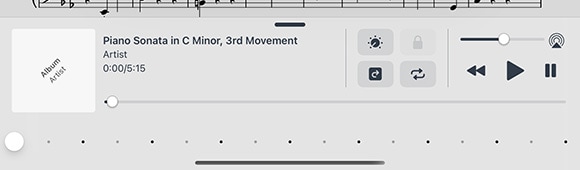
When appropriate, forScore’s audio panel can be found at the bottom of the main view. It appears and disappears along with the rest of forScore’s controls when you tap the center of the screen.
This panel is available if you’re viewing a score that has an audio track or recording associated with it (see the Metadata section for more details on managing audio tracks), or if another app is playing audio and the “use external audio” option is enabled in forScore’s settings panel.
Tip: Tap or drag the pill-shaped control at the top of the media box upward or downward to show or hide it as needed.
Playback
Adjustment:
In most cases you can adjust a track’s playback speed and pitch independently. (See the sidebar for specific examples and restrictions.) These options are saved automatically per score.
Locking:
If your settings allow you to flip between scores, the lock icon in the media box can prevent you from accidentally flipping to the next or previous score as long as the track is still playing.
Replay:
Automate your page turns by recording them in conjunction with a linked audio track. Tap the Replay button in the media box (the page with an arrow in it) and turn pages while the track plays. On subsequent plays, pages will turn themselves at just the right moment.
While replay mode is on, small lines in the seek bar will show you where saved page turns are located. A “···” button will also appear on the right-hand side of the seek bar, allowing you to edit or remove saved page turns.
Looping:
If you’d like to loop a portion of the song, just tap on the repeat symbol and drag the two handles left and right to set the loop time. For more precise control, tap the “···” button.
Recording
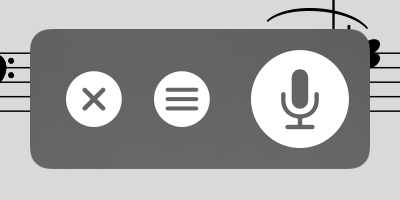
Whether you’d like to review your practice sessions later or share your progress with friends and colleagues, forScore’s recording feature can help. Choose “record” from the tools menu, then tap the microphone icon when you’re ready. You’ll see a red volume meter so you can make sure you’re close enough for the microphone to pick up clear audio. Tap again to stop recording, and then either save or discard it. Saved recordings are automatically linked to the current score so you can review them later.
The list icon next to the microphone lets you view, share, or delete any recordings you’ve made for the current score.
Note: The media box is not visible while recording. Tap the X button when you’re finished recording to continue using the media playback controls.
The recording feature requires access to your device’s microphone and the system will prompt you to allow this the first time you try to record. Use the Settings app (or System Preferences if you’re using a Mac) to grant or revoke this access at any time.
February 27, 2019
Uncategorized
Our remote control system, Cue, allows you connect multiple devices together wirelessly to coordinate your page turns and program changes. It uses both Wi-Fi and Bluetooth to discover and communicate with nearby devices, and performance may vary based on environmental factors.
Note: Although Wi-Fi must be enabled for the app to discover nearby devices, an internet connection is not required when using Cue.
Roles
In order to properly coordinate your actions, Cue requires you to pick a role when initiating or joining a session. A “Leader” is responsible for turning pages and navigating between different scores or bookmarks in their library. A “Follower” lets their device follow along automatically, either by responding to page turns, program changes, or both.
Note: A Program Change is how we refer to navigation between songs. When a leader opens a new score or bookmark from their library or flips from the end of one piece to the beginning of the next, that’s a Program Change.
Tap the Cue icon in the Display Options overlay to choose your role: “Lead,” “Follow Page Turns,” “Follow Program Changes,” “Follow Both,” or pick “Dual Page mode” (discussed later in this section). Tap “open panel” or select Cue from the Tools menu to open the Cue connection panel which lists available and connected devices and lets you change your role or disconnect from the current session.
Device-Specific Considerations
Page turns work differently depending on your device’s orientation and settings. If a leader is using their device in landscape orientation, forScore will send page up and down messages but only other landscape-oriented devices will respond. Similarly, half-page turn messages can be sent by a leader who uses them, and only the connected devices who are using portrait mode and who have half-page turns enabled will see the effect.
Dual Page Mode
When using forScore on one device and the standalone Cue app on another, a special Dual Page mode lets you view two full pages side-by-side. One page appears on the primary device, and Cue displays the next page wirelessly. Tap or swipe on either screen to advance, two pages at a time. Links and buttons are also supported on either screen, so you don’t have to worry about which device you need to tap.
The standalone Cue app is currently available on the App Store worldwide.
Cue 2
With forScore 14.4 we introduced a new version of the Cue remote control protocol called Cue 2 which uses Apple’s modern networking frameworks to provide faster and more reliable connections. Cue 2 is compatible with forScore 14.4 or later and the standalone Cue app (version 2.4 or later). You can switch back to the original Cue 1 protocol if needed to connect to devices running older versions of either app: tap the circled ellipsis button in the top left-hand corner of the Cue panel to switch between protocol versions.
Group ID
If you’re working in close proximity to other groups, setting a group ID can ensure you only connect to the devices you intend to coordinate with. Using forScore 15.2 or later and the standalone Cue app version 3.0 or later, set a group ID and these devices will only connect to other devices that use the same ID. If you need to connect with devices running older versions of these apps, you should not use this feature.
February 27, 2019
Uncategorized
Drag and Drop gestures make working with forScore much faster and more intuitive. In most cases Drag and Drop provides a second way of doing things, so you’re free to use the original way if you prefer.
Basics
To use Drag and Drop on iOS or iPadOS, tap and hold certain items for a moment until they appear to lift off the screen, then drag your finger away from it slightly to begin the drag process. While holding the item with one finger, you’re free to use your other fingers to interact with forScore or any other app on your device. On macOS, drag and drop works immediately—just click and drag without pausing first. Since Macs don’t support multiple simultaneous pointer interactions, some drag and drop techniques described below may not be practical on macOS.
Note: Contextual Menus also use a long press gesture and change how Drag and Drop works in cases where both are available. Tap and hold an item to show its contextual menu and then drag the preview away to use Drag and Drop (there’s no need to lift your finger first, just use one continuous motion). If you prefer, you can disable either Drag and Drop or Contextual Menus in the Accessibility section of forScore’s settings panel.
In some cases, tapping additional similar items adds them to the drag session (like dragging a score in the Score menu, then tapping other scores to drag them at the same time). You can open and close menus and panels and your drag items will follow your finger as long as it’s touching the screen.
When you’ve dragged your finger over a valid drop zone, you may see some indication that lifting your finger here will perform some kind of action. The drop zone may react by moving or changing colors, or a green “+” badge may appear, for instance, letting you know that dropping the items in this spot will copy them in some way. Each interaction works a little differently, so try some of the following examples for yourself to see how they behave.
Rearranging Items
Many of forScore’s views list items that can be rearranged: setlists and their contents, libraries, audio tracks and MIDI commands in the Metadata panel, accounts in the Services panel, and more. Typically, these items can be arranged by tapping “edit” and then dragging the three horizontal lines on the right-hand side of the cell up or down as needed. With Drag and Drop, there’s no need to enter “edit” mode first—simply tap and hold any part of the item until it lifts up and out of the list, then drag up or down.
Working With Items
Scores and bookmarks can be dragged out of forScore’s Score, Bookmark, and Setlist menus, the Search panel, and you can even drag the current item out of the main view’s title display (and remember: you can use any combination of these sources to add multiple items to your drag session). Drag any single item onto the page to open it, or drag one or more items into the Tab bar to open them in tabs.
Working With Setlists
No feature is better suited to Drag and Drop than Setlists. Creating, editing, and organizing your setlists is dramatically simpler and faster using these new gestures. To rearrange setlists or their contents, drag items up or down as discussed in the “rearranging items” section above. You can also drag a setlist into or out of a folder to move it.
To create a new setlist, drop one or more scores or bookmarks into the main Setlists list and supply a name. To add items to an existing setlist, drop them onto the setlist’s name and they’ll be added to the end of that list. Or, hover over a setlist (or tap it) to open it, then drop the items into the list at a specific point. You can even drag items out from one setlist and into another one to copy items between them.
Importing & Sharing Files
Drag and Drop isn’t just restricted to the same app; you can also drag compatible files into forScore to import them. Drop one or more PDF files into the Score menu to add them to your library, onto the page to import them and open the last one, or drop them into the tab bar to import and open all of them in new tabs. Drop them into the Setlist menu to create a new setlist with them or add them to an existing setlist using the same methods described in the previous section.
Importing works with other files, too. Drop any file type supported by forScore into certain views or panels to import them. Other supported formats include our own 4SC (scores), 4SS (setlists), and 4SB (backups) file types, as well as certain kinds of text and audio files.
You can also drag some items out of forScore to export them: drag a score to share a copy of its source PDF file, or drag an audio track, recording, or backup file to copy it to any other app that accepts them.
Audio Tracks
forScore uses Drag and Drop to help you work with audio files more quickly and flexibly, too. Drag them into and out of the audio file picker to import or export them, or drag them onto the media box to import them and link them to the current score or bookmark.
If the current track is a locally stored file, you can drag the track’s title out of the media box to send a copy to another app. Otherwise, if it’s a track that comes from your device’s shared Music library, you won’t be able to export the file but you can still use Drag and Drop to add the track to another score or bookmark in your library (drop it into the Metadata panel’s audio track list).
Annotating
While annotating, use Drag and Drop to rearrange your drawing presets by dragging them left or right. You can also work with images in several ways: drop an image onto the page (from the Photos app, Safari, or any app that allows you to drag images) and forScore will place it as an annotation. Resize it, reposition it, then tap outside of it to complete the process.
Create new stamps by dragging images from other apps directly into the Stamp Creator’s canvas. Use the Selection tool to select an area of drawn annotations, then use Drag and Drop to copy them as an image to other apps. Since you’re working with standard images in both cases, you can even combine these two examples to create new stamps from annotations you’ve previously drawn by hand, all without leaving the app or needing to go to your computer to deal with image editing software.
Services
In the Services panel, use Drag and Drop to move files between folders or drop certain things here to upload them. Drag scores, bookmarks, setlists, audio files, backups, or CSV files into the Services panel to upload them.
MIDI
Drag commands between the various MIDI sections in the Metadata panel and the Button editor to copy them, or drag commands onto the page to create a new button with them.
Multiple Windows
On iPadOS, Drag & Drop gestures can be used to create new windows. Drag a score or setlist to the left or right edge of the screen until it shows the forScore app icon, then let go to open a new window displaying that content.
Disabling Drag and Drop
Some users may find that iOS’ Drag and Drop gestures interfere with their ability to work. Although iOS does not currently provide a system setting to disable them, forScore offers an option in the Accessibility section of its Settings panel called “Drag and Drop” that significantly alters how it utilizes these gestures. When this setting is disabled, forScore does not make items available for dragging and most interactions return to how they worked with older versions of iOS.
Note that this setting does not affect how forScore receives drop gestures originating from other apps, however, so you can still do things like drag a PDF file from the Files app directly into forScore to import it.
February 27, 2019
Uncategorized
Getting the most out of this guide
This document was designed to introduce you to forScore’s many features, and to give you a framework of knowledge to use as you continue exploring and learning on your own. It’s not a technical manual and isn’t intended to provide exhaustive step-by-step instructions for every situation.
Every person learns differently, and while we do our best to make things clear for users of all levels of experience, you may have some questions that aren’t answered here. If that’s the case, visit forscore.co/support to find more specific answers and topics.
Devices
forScore is compatible with iPads running iPadOS 18 or later, iPhones on iOS 18 or later, Macs using macOS 15 or later, and Vision Pro with visionOS 2 or later. Except where noted, functions available on one device are also available (and work similarly) on the others. Exact placement and appearance of features and icons may vary based on your OS version, device, settings, and multitasking mode.
iPadOS and iOS are nearly identical in most respects, so to keep things concise we sometimes refer to them collectively as “iOS” in this guide. Unless otherwise noted, those references apply equally to both platforms.
Terminology
forScore is designed to be used with a variety of input methods including touch, keyboards, and trackpads or mice. In general, we use words like “tap” and “drag” or “swipe” which translate to “click” or “scroll” when using a mouse or trackpad. When we refer to screen size or device orientation, these concepts translate to window size and aspect ratio when windowing is used.
A note about Drag and Drop and Contextual Menus
Since they were introduced, forScore has fully supported and made extensive use of both Drag and Drop and Contextual Menu interactions. To keep things simple, this guide doesn’t call out every situation where these features are available. Instead, we provide two sections at the end of this document that help you understand when these interactions can speed up the tasks you’ve learned about in earlier sections.
Additional information about this user guide
This user guide is provided as a courtesy, as-is and without guarantee or warranty. Although we thoroughly proofread the content herein for accuracy and clarity, you are solely responsible for the integrity and protection of your information while using forScore.
This guide was last updated for version 15.2, and all features are subject to change without notice. If you are unsure how any of the processes described in this guide may affect your information, consider backing up your data before proceeding.
Please remember that many musicians rely on the legitimate sale of their sheet music as an essential part of their income. Although forScore provides the mechanism for importing PDF files from the numerous sources, it is solely your responsibility to ensure that doing so does not infringe upon any current laws or restrictions under which you are subject.
For any questions, corrections, suggestions, or concerns, please visit forscore.co/support and send us a message—your feedback is how we make better products.
All content copyright © 2010- forScore LLC. All rights reserved. No portion of this document may be reproduced, modified, or distributed without permission.
February 27, 2019
Uncategorized
forScore includes several Accessibility options in the settings panel that can help you get more out of the app.
Reflow
Although forScore can’t interpret the notes in a PDF file, it can detect where important information is generally on each page. With Reflow, forScore takes that information, magnifies and redraws it, then lays it out end-to-end so you can read your music in one long line—like a horizontal teleprompter. Reflow gets you most of the way there with its smart detection, and if it gets something wrong you can correct it quickly and never worry about it again.
Reflow is available by default on iPhone but on other devices it must first be enabled for use through the ‘Accessibility’ section of forScore’s settings panel. To activate it, select the Reflow (zig-zag arrow) icon from the Display Options overlay.
Reflow mode features several buttons along the top of the screen: Edit, zoom, navigation mode, and an exit button. Learn about each of their functions below.
Editing Zones:
The Edit button allows you to adjust Reflow’s zones if needed. You’ll see them as gray rectangles—tap once to see its resize controls, and tap again to show the delete option. Drag the green control at the top of each rectangle to downward to split it horizontally into two new areas.
You’ll see a control bar along the bottom of the screen: use the + button at the bottom of the screen to create a new zone, use the arrows to move between pages, and drag the set of three lines on either end of the control bar to drag it up or down and out of your way. If you’d like forScore to reset all zones and re-scan the page, tap the Reset button.
Zoom:
Zoom in or out to find the best magnification for you—up to three times as large as the original page.
Navigation:
Choose to page or scroll through your music. In Page mode, tapping on either side of the screen will shift the music over by half of your screen’s width. In Scroll mode, your music will scroll by continuously: tap the left side of the screen repeatedly to slow it down or the right side to speed it up. Tap in the center of the screen to pause or resume scrolling.
More
Other Accessibility settings allow you to disable Drag & Drop and Contextual Menu gestures, change the metronome’s sounds, adjust the default size of links and buttons, or use full-screen menus.